Data Import
The Import feature allows you to quickly add multiple accounts from spreadsheet or text files. M2R supports Excel (.xlsx, .xls), CSV, and .txt formats, making it easy to migrate data from other systems or bulk-load accounts.
How To Import Data from CSV or Excel
Access the Import wizard by clicking Import from File on the Dashboard, or by navigating to Import/Export → Import Data in the sidebar menu.
Upload Your Data File
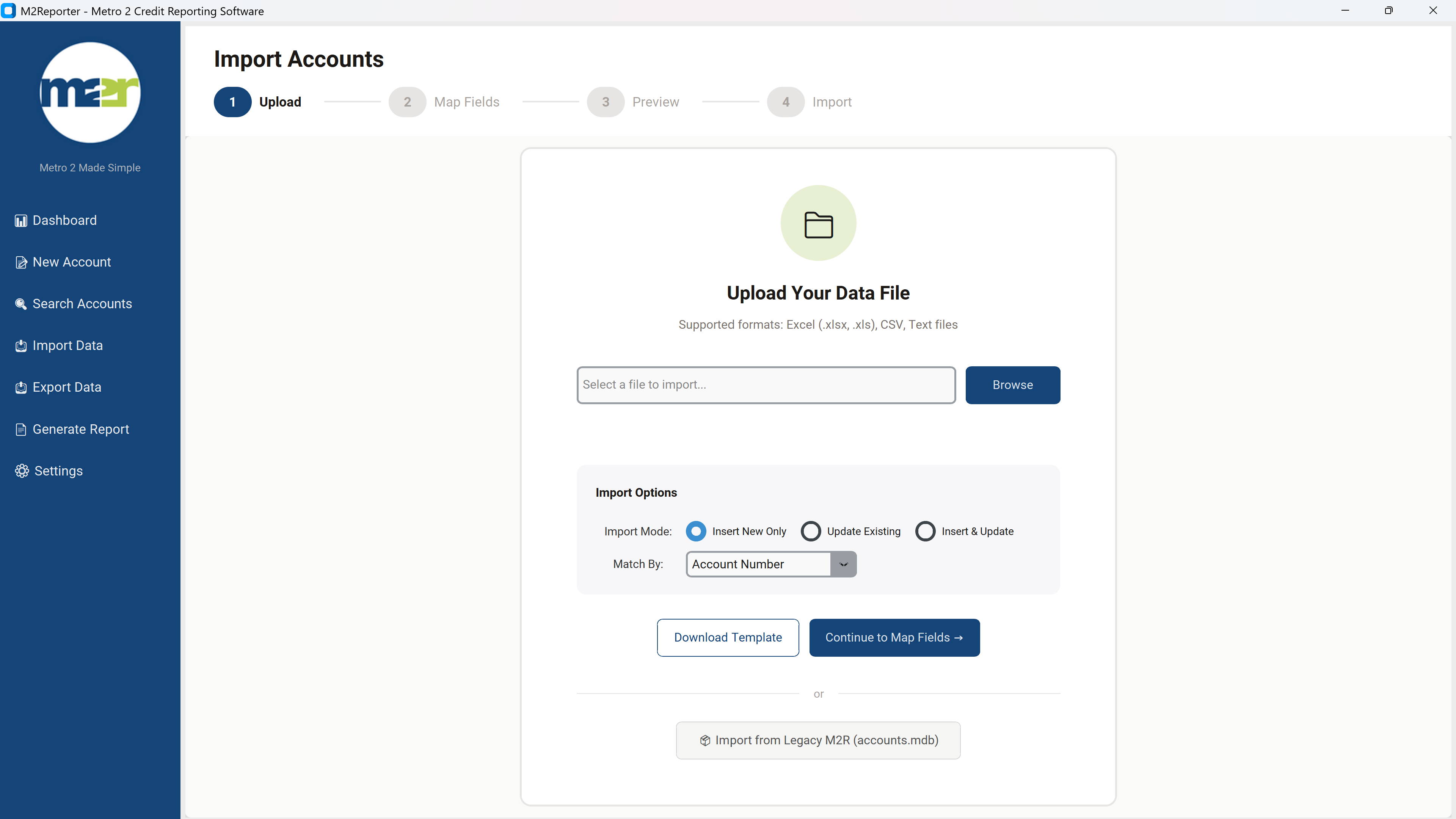
Figure 1: Import Data
The Upload screen allows you to select your data file and configure import options.
Supported File Formats
- Excel (.xlsx, .xls) — Recommended for complex data
- CSV — Comma-separated values
- Text (.txt) — Tab or delimiter-separated
Import Options
| Option | Description |
|---|---|
| Insert New Only | Only adds accounts that don't already exist (based on the Match By field) |
| Update Existing | Only updates accounts that already exist; skips new accounts |
| Insert & Update | Adds new accounts and updates existing accounts |
| Match By | Field used to identify duplicate accounts — Account Number is recommended |
Getting Started
- Click Browse to select your data file.
- Select your Import Mode based on whether you're adding new accounts, updating existing ones, or both.
- Choose the Match By field (Account Number is recommended).
- Click Continue to Map Fields to proceed.
Map Import Columns
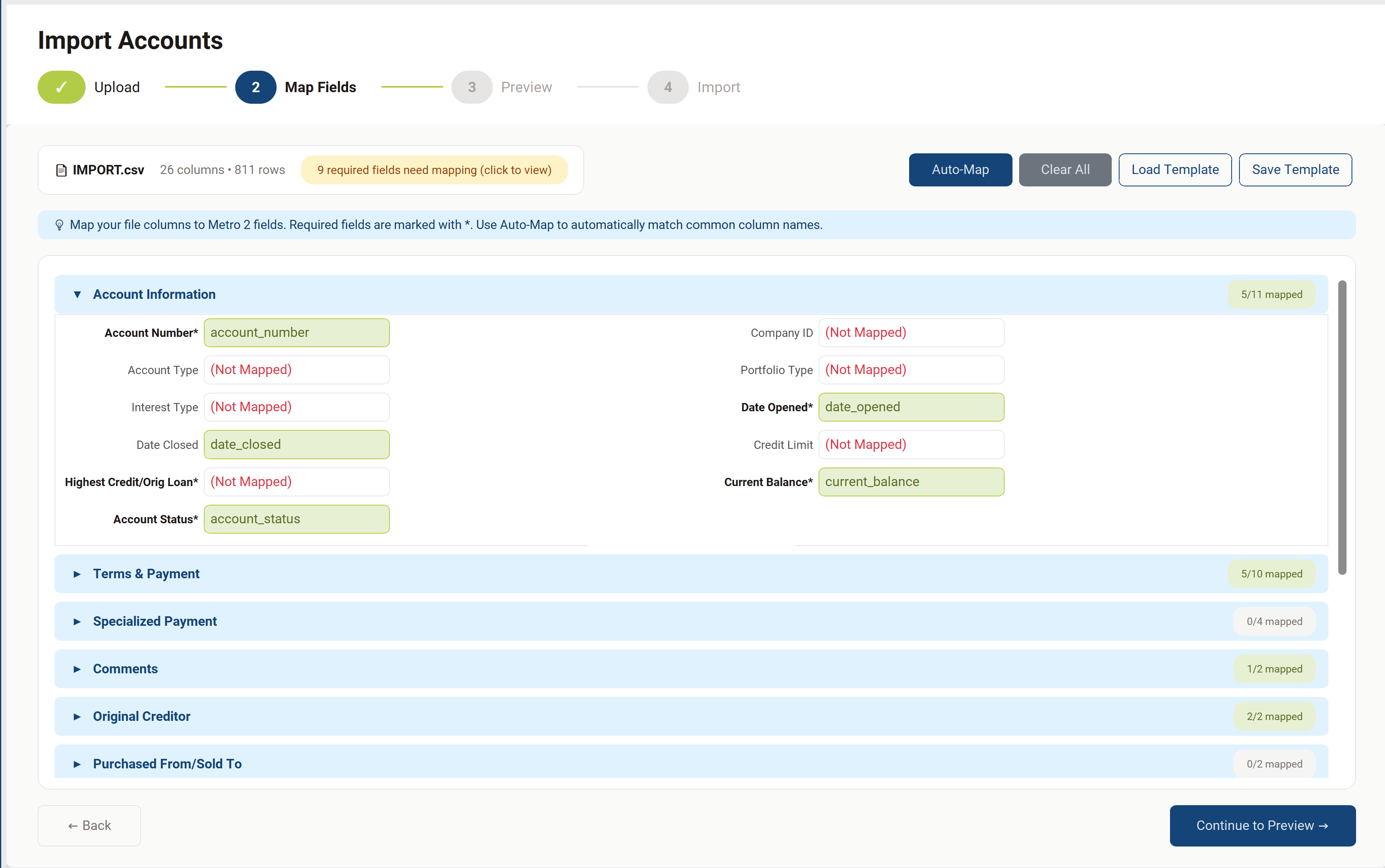
Figure 2: Mapping Import Fields
The Map Fields step connects the columns in your import file to M2R's Metro 2® fields. Fields are organized into expandable categories that match the account entry form. The badge on each category shows how many fields are mapped (e.g., "10/11 mapped").
Field Mapping Categories
- Account Information — Account number, type, status, dates, balances
- Terms & Payment — Payment frequency, amounts, dates
- Primary Consumer — Name, SSN, date of birth, phone, ECOA
- Primary Consumer Address — Street address, city, state, ZIP
- Payment History — 24-month payment history profile
- Associated Consumer (Same Address) — Name, SSN, ECOA
- Associated Consumer (Different Address) — Name, SSN, ECOA, address
Mapping Tools
| Button | Action |
|---|---|
| Auto-Map | Automatically matches columns with similar names to Metro 2® fields |
| Clear All | Removes all current field mappings |
| Load Template | Loads a previously saved mapping configuration |
| Save Template | Saves your current mapping for reuse with similar files |
Preview and Complete the Import
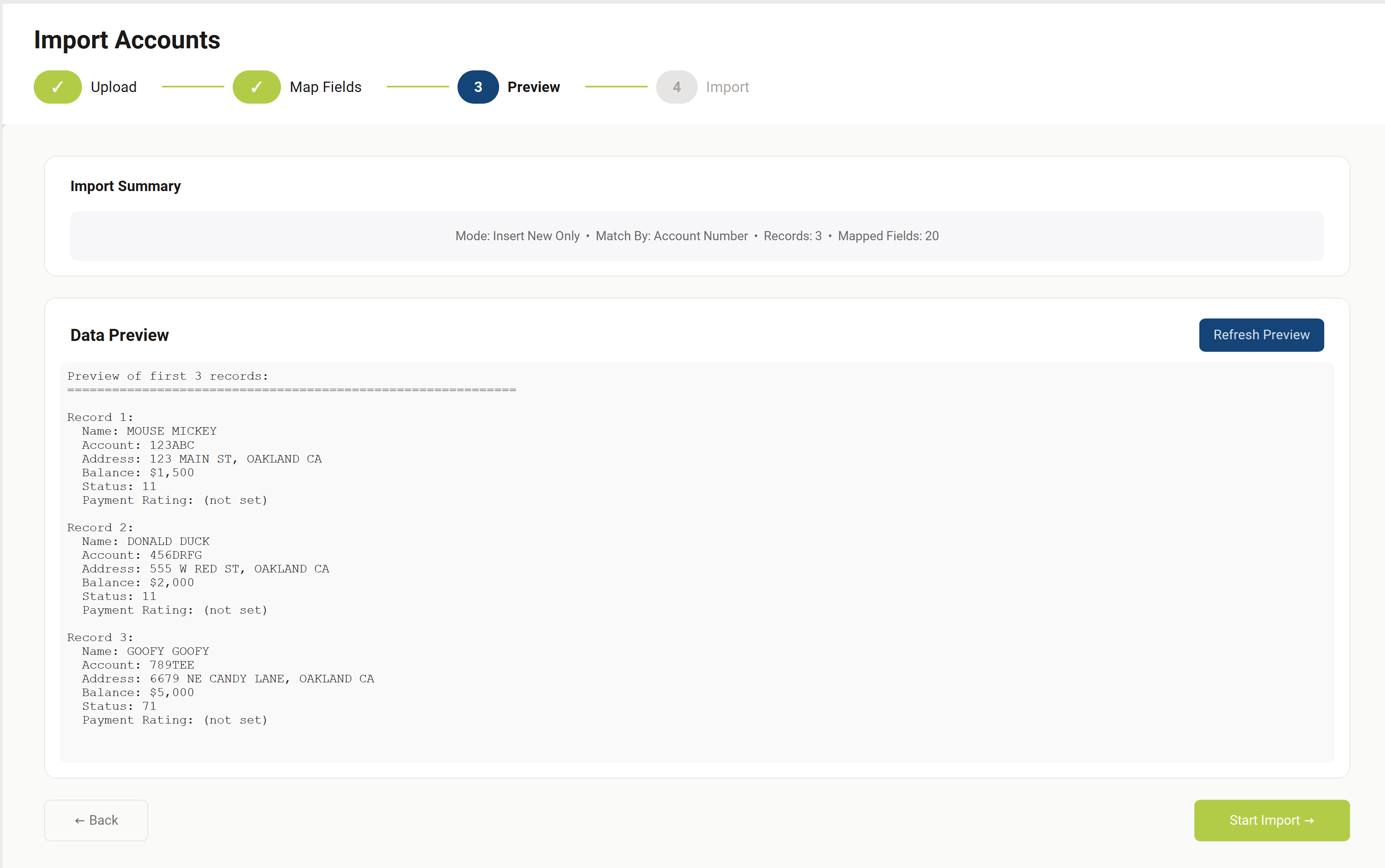
Figure 3: Import Preview
The Preview step shows how your data will be imported, allowing you to verify the mapping is correct before committing.
Import Summary
The summary bar displays key information about your import:
- Mode — Your selected import mode
- Match By — The field used to identify existing accounts
- Records — Total number of records in your file
- Mapped Fields — Number of fields that will be imported
Data Preview
The preview shows the first 5 records formatted as they will appear after import. Review carefully to confirm:
- Names are in the correct format (Last Name, First Name)
- Account numbers match your expected format
- Addresses are complete
- Associated consumers (J1/J2) are correctly identified
Review Import Results
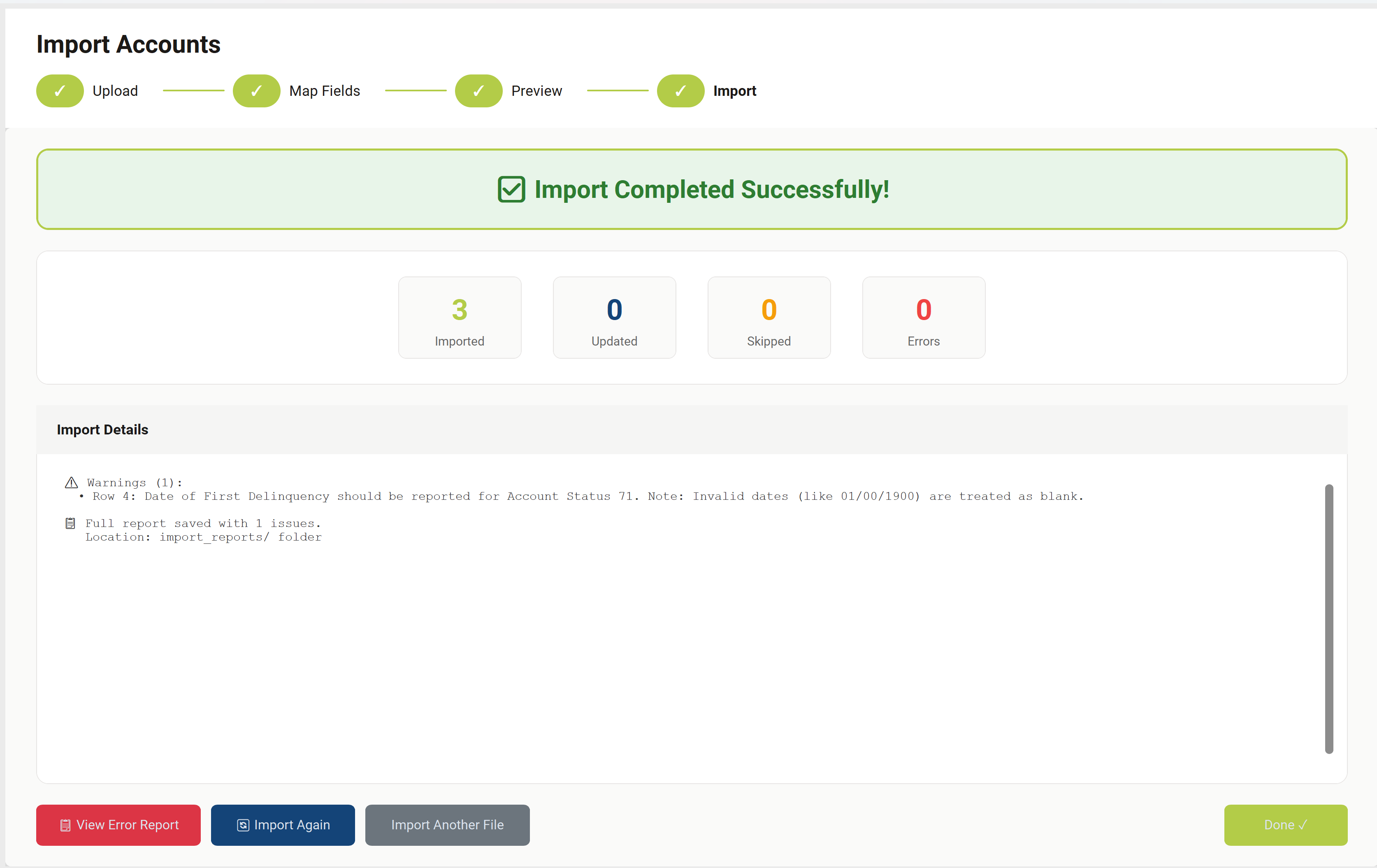
Figure 4: Import Data Results
After the import completes, the Results screen shows a summary of what was processed:
| Statistic | Description |
|---|---|
| Imported | Number of new accounts successfully added |
| Updated | Number of existing accounts that were updated |
| Skipped | Records skipped (duplicates in Insert New Only mode, or not found in Update mode) |
| Errors | Records that failed due to data issues |
After Import Actions
| Button | Action |
|---|---|
| View Error Report | Downloads a detailed error and warning log |
| Import Again | Restart the import with the same file |
| Import Another File | Start a new import with a different file |
| Done | Return to the main Accounts screen |