Creating Metro 2® Files
After entering or importing accounts and tagging them for reporting, you can generate Metro 2® formatted files to submit to the credit bureaus. The generated file follows the CDIA Metro 2® Format specification.
How To Generate a Metro 2® File
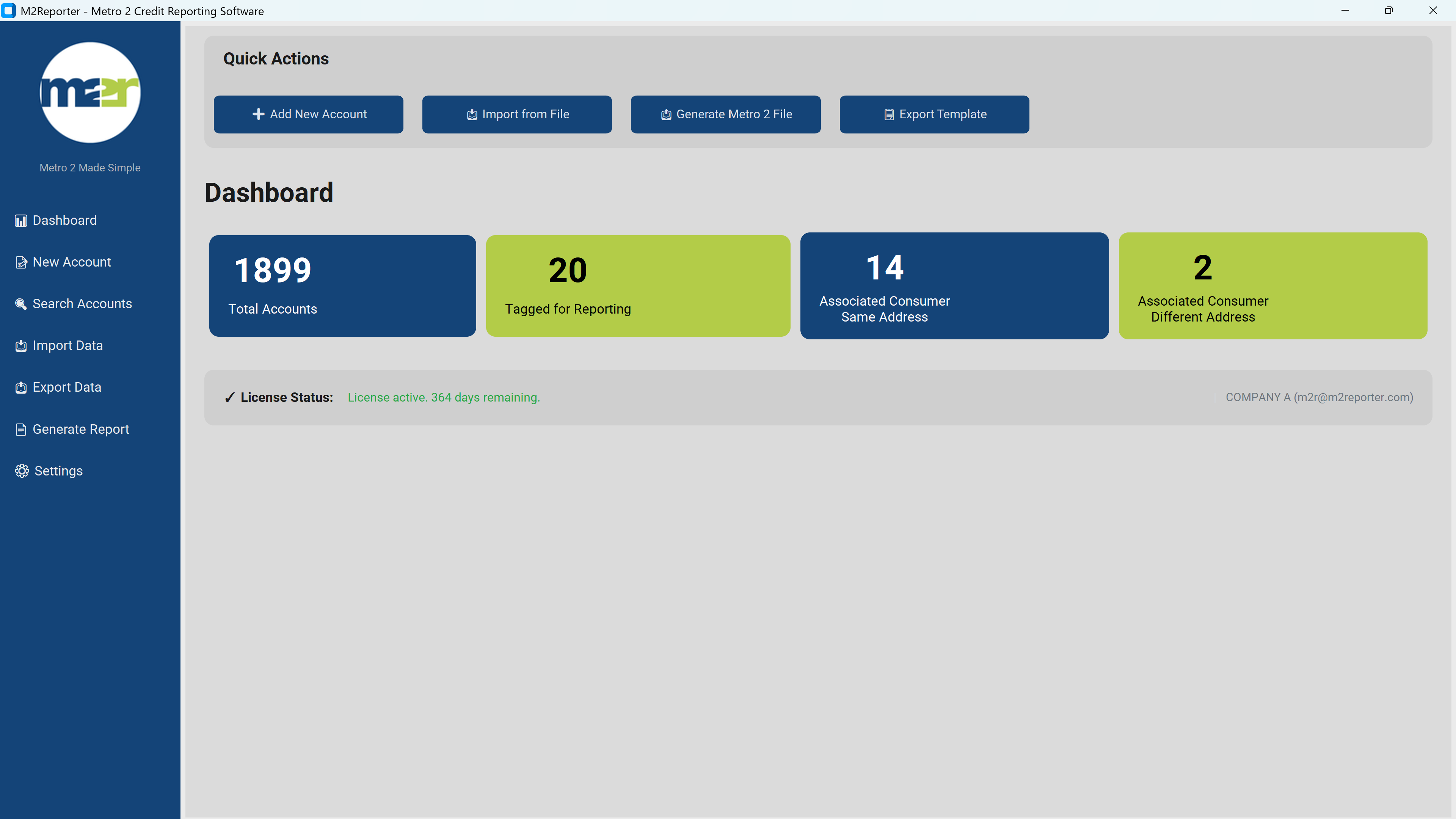
Figure 1: Generate M2R Report
Access the generation screen by clicking Generate Metro 2® File on the Dashboard, or by navigating to Generate Report in the left sidebar.
Reporter Information
The top section displays your company information that will appear in the Header record of the Metro 2® file. This data comes from your Reporting Company Settings:
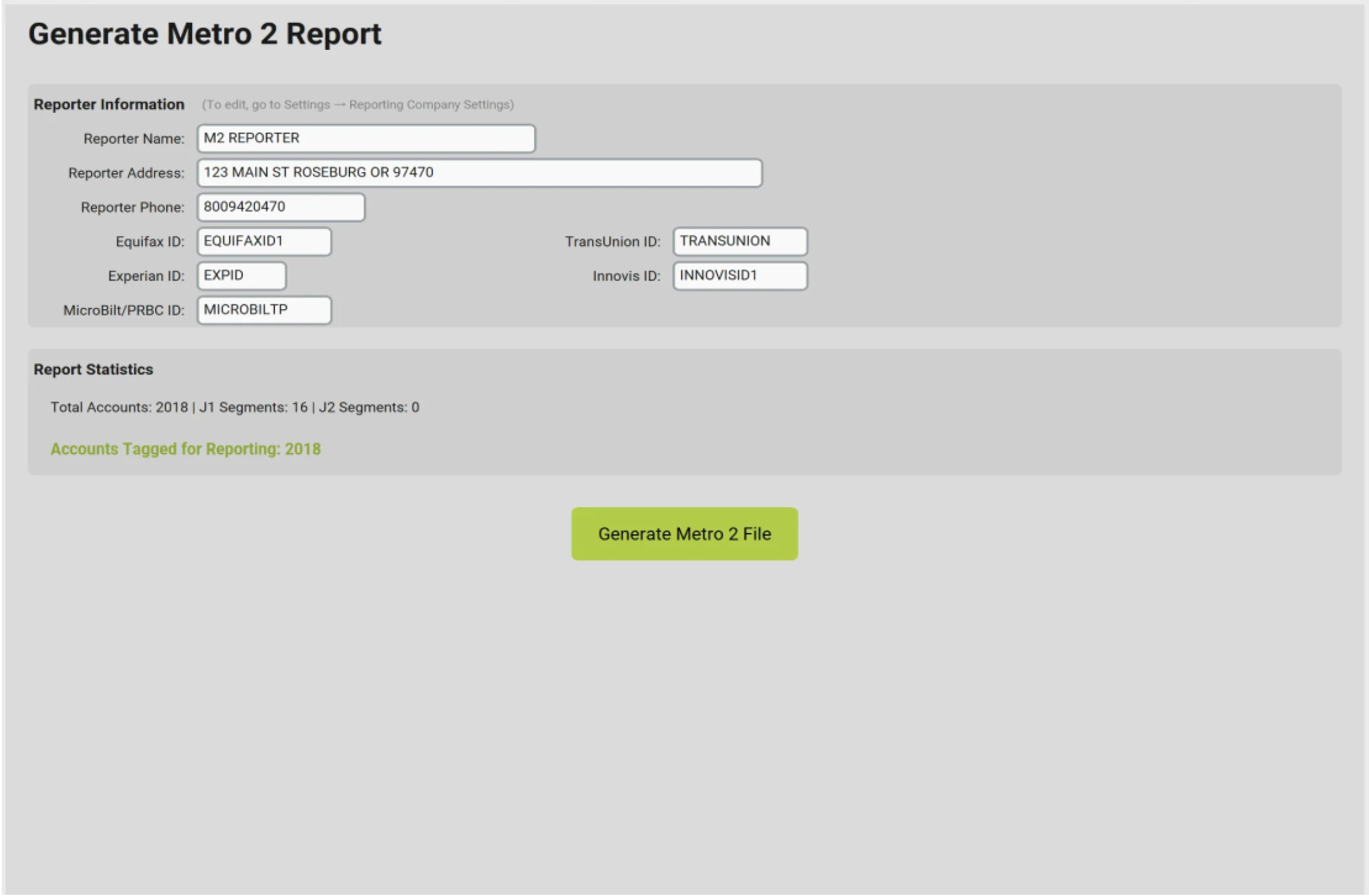
Figure 1: Generate M2R Report
| Field | Description |
|---|---|
| Reporter Name | Your company name (appears in Header Segment) |
| Reporter Address | Your company address |
| Reporter Phone | Contact phone number |
| Equifax ID | Your Equifax subscriber code |
| TransUnion ID | Your TransUnion subscriber code |
| Experian ID | Your Experian subscriber code |
| Innovis ID | Your Innovis subscriber code (optional) |
| MicroBilt/PRBC ID | Your MicroBilt/PRBC subscriber code (optional) |
Report Statistics
The Report Statistics section shows what will be included in the generated Metro 2® file:
| Statistic | Description |
|---|---|
| Total Accounts | Number of base records that will be generated |
| J1 Segments | Associated consumers at the same address |
| J2 Segments | Associated consumers at different addresses |
| Accounts Tagged for Reporting | Total accounts marked for inclusion |
Generating the File
Click the Generate Metro 2® File button to start the generation process. A progress dialog shows the status:
- Current record being processed
- Account number being written
- Percentage complete
Generation time depends on the number of accounts. A file with 2,000 accounts typically generates in under a minute.
How To Review Generation Results
When generation completes successfully, M2R prompts you to save the Metro 2® file.
Saving Your File
The file is saved in Metro 2® Fixed Length format with a .txt extension. The recommended naming convention is:
- COMPANYNAME_MMDDYYYY.txt (e.g., ACMECREDIT_01152026.txt)
Metro 2® File Structure
The generated file contains the following segments in order:
| Segment | Description |
|---|---|
| Header Segment | Identifies your company; contains bureau IDs and reporting date |
| Base Segments | One per account — contains account and primary consumer data |
| J1 Segments | Associated consumers at the same address (follows each relevant Base Segment) |
| J2 Segments | Associated consumers at a different address |
| Trailer Segment | Contains record counts and control totals |
Submitting to Credit Bureaus
Each credit bureau has its own submission method. Contact each bureau directly for submission credentials and procedures.
| Bureau | Submission Method |
|---|---|
| Equifax | ePort |
| TransUnion | TU Connect or SFTP |
| Experian | Experian Upload or SFTP |
| Innovis | Innovis Secure File Transfer |
After Generation
After successfully generating and saving your file:
- Review the file in a text editor to spot-check the data
- Submit to each credit bureau according to their procedures
- Monitor for bureau acknowledgment or rejection notices
- Address any errors reported by bureaus before the next reporting cycle
- Errors not addressed before the next reporting cycle will need to be corrected in M2R and through your eOscar account
CONSUMER DATA INDUSTRY ASSOCIATION®, CDIA®, the CREDIT REPORTING RESOURCE GUIDE®, and METRO 2® are registered trademarks of the Consumer Data Industry Association. Neither M2R nor its products or services are affiliated with or endorsed by the Consumer Data Industry Association or CDIA.