Setting Up Users
M2R supports multiple user accounts with different permission levels. An Administrator sets up and manages all users from the User Management settings.
Understanding User Roles
Each user is assigned one of three roles. Assign the least amount of access a user needs to do their job.
👑 Administrator
- Full access to all features
- Add, edit, and delete users
- Change user roles and passwords
- Configure all settings
- Change session timeout
✏️ Editor
- Add, edit, and delete accounts
- Import data
- Generate Metro 2® files
- Cannot manage users or settings
👁️ Read-Only
- View accounts and reports
- Cannot add, edit, or delete data
- Cannot import or generate files
- Cannot access settings
How To Add a New User
Access user management by clicking Settings in the left sidebar, then selecting the User Management tab.
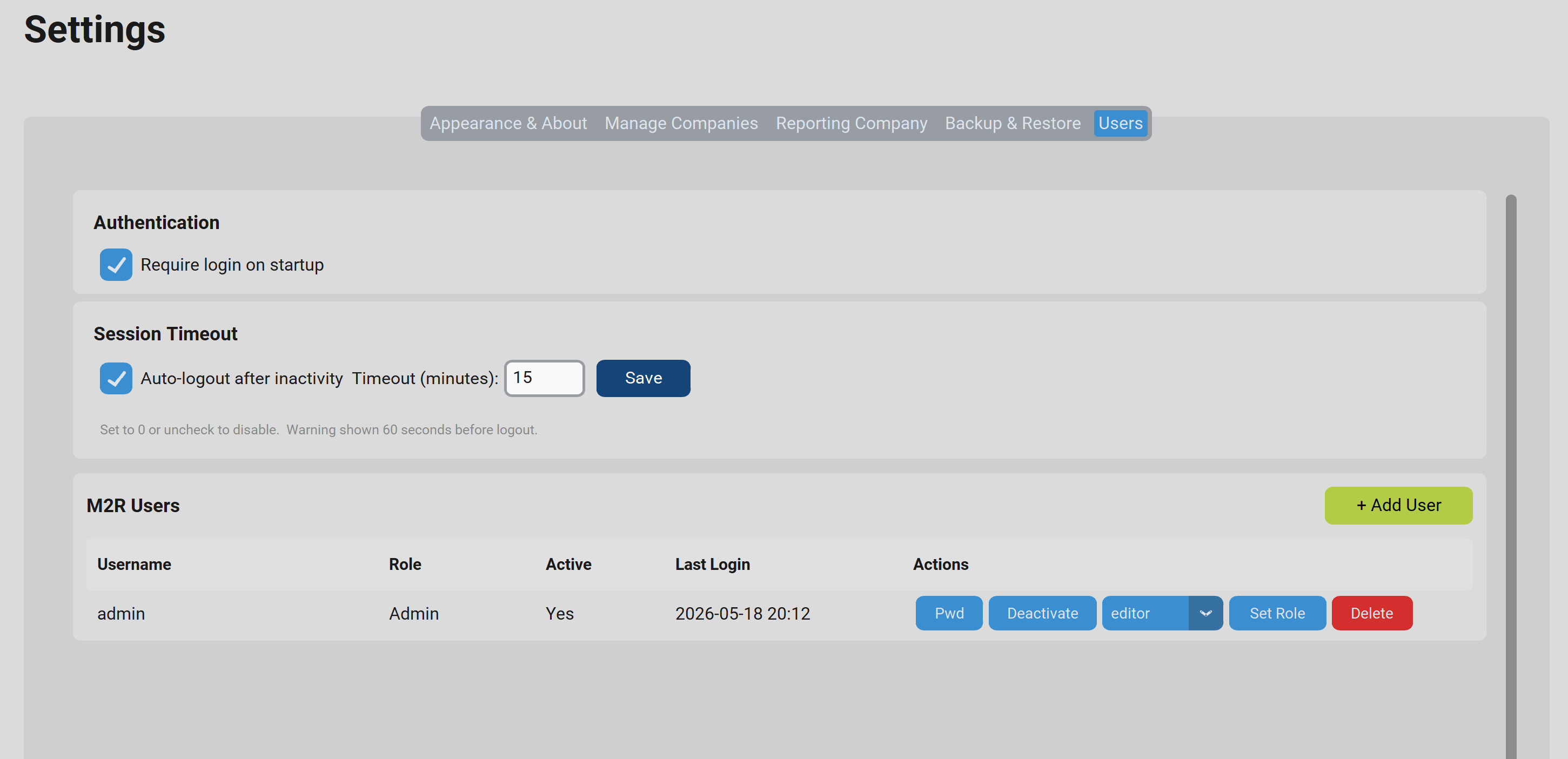
Figure 1: Add and Manage Users
How To Manage Existing Users
Changing a User's Role
- Go to Settings → User Management.
- Select the user from the list.
- Change the Role dropdown to the new role.
- Click Save User.
Resetting a Password
- Go to Settings → User Management.
- Select the user from the list.
- Enter a new temporary password in the Password field.
- Click Save User. The message Password updated for {username} will confirm the change.
- The new password is active immediately on next login.
Deleting a User
- Go to Settings → User Management.
- Select the user from the list.
- Click Delete User and confirm when prompted.
Login & Session Settings
Administrators can configure how M2R handles login requirements and session timeouts under Settings → Application Settings.
Require Login
When enabled, M2R prompts for a username and password every time it is launched. When disabled, M2R opens directly without a login screen. Changes take effect the next time the application is started.
| Setting | Description |
|---|---|
| Login Required — On | Recommended for shared computers or anywhere data security is a concern |
| Login Required — Off | Convenient for single-user installations on a private, secured computer |
Session Timeout
M2R automatically logs out inactive users after a set period of time. When the session is about to expire, a 60-second countdown warning appears so the user can stay logged in by clicking a button.
| Setting | Description |
|---|---|
| Session Timeout Duration | The number of minutes of inactivity before M2R logs the user out. Default is 15 minutes. |
| Warning Countdown | A 60-second warning appears before the session ends, giving the user a chance to stay logged in. |