Backing Up Data
M2R stores all your account data in a local database on your computer. Regular backups protect you from data loss due to hardware failure, accidental deletion, or when moving to a new computer.
Important: M2R does not automatically back up your data. We strongly recommend backing up after every reporting cycle and before performing any major changes such as bulk imports or deletions.
How To Create a Backup
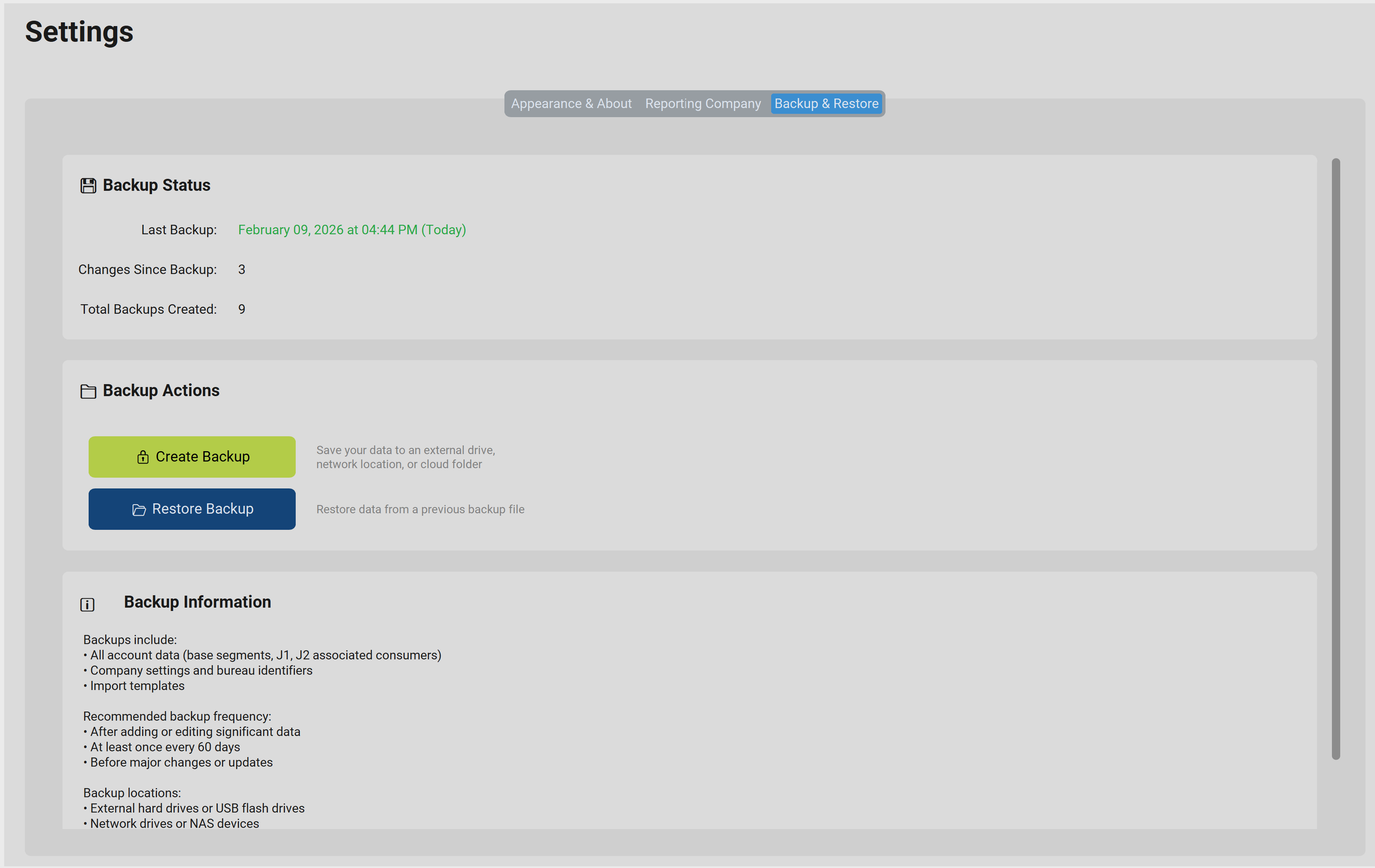
Figure 1: Backing up or Restoring Data
Access the backup tool by clicking Settings in the left sidebar, then selecting Backup & Restore.
Steps to Back Up
1
Click Backup Data on the Backup & Restore screen.
2
Click Browse and navigate to the folder where you want to save the backup file. Choose a location outside your M2R install folder — a network drive, external drive, or cloud-synced folder (such as OneDrive or Google Drive) is recommended.
3
Click Start Backup. M2R will create a backup file with the extension .m2r.
4
When the Backup Complete message appears, your data has been saved successfully.
Tip: Name your backup files with a date so you can identify them easily — for example, M2R_Backup_05-17-2026.m2r.
Where to Save Your Backups
| Location | Recommended? | Notes |
|---|---|---|
| OneDrive / Google Drive | ✔ Yes | Syncs automatically; accessible from anywhere |
| Network drive / shared folder | ✔ Yes | Good for multi-user environments |
| External USB drive | ✔ Yes | Keep offsite for extra protection |
| Same computer as M2R | ⚠ Risky | Does not protect against hard drive failure |
How To Restore a Backup
Restoring replaces your current M2R database with the data from a backup file. Use this when moving to a new computer or recovering from data loss.
Warning: Restoring a backup will overwrite your current database. Any accounts added or changed since the backup was created will be lost. Make sure you are restoring the correct file.
Steps to Restore
1
Click Tools in the left sidebar, then select Backup & Restore.
2
Click Restore Data.
3
Click Browse and navigate to your .m2r backup file.
4
Click Start Restore and confirm when prompted.
5
When the Restore Complete message appears, restart M2R to ensure all data loads correctly.
Note: Only valid .m2r backup files created by M2R can be restored. If you select a different file type, M2R will display an error and no changes will be made.
Moving M2R to a New Computer
- On your old computer, create a backup following the steps above and save it to a USB drive, network share, or cloud folder.
- Install M2R on your new computer and complete the license activation. Contact support if you need your license transferred.
- On the new computer, open M2R and go to Tools → Backup & Restore → Restore Data.
- Browse to your backup file and restore it.
- Verify your accounts are present in Search Accounts before reporting.
Tip: After restoring to a new computer, go to Settings → Reporting Company Settings to confirm your bureau IDs and company information are correct before generating your next Metro 2® file.